Close your laptop and Cline keeps coding: how does the cloud coding agent work?
The open-source coding agent Cline opened Cline Cloud to every user, running tasks in its own cloud sandbox; how it works, its limits and how to try it.

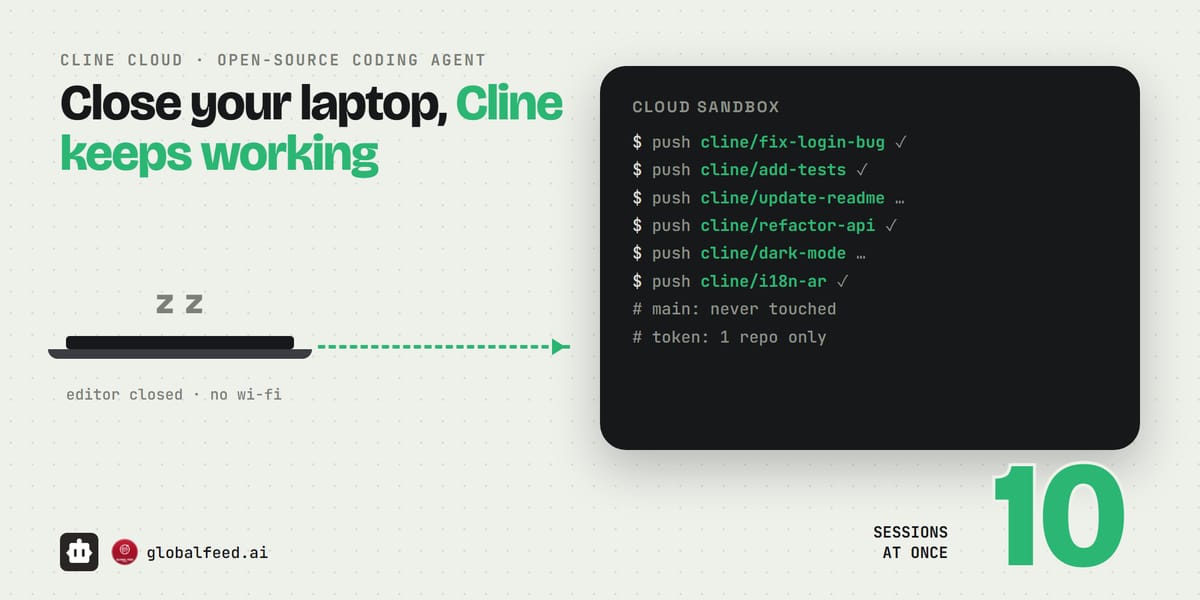
You hand a coding agent a task. It starts reading files, making changes, running tests. Then you have to join a meeting, or close the laptop and head out. Because the agent runs on your machine, the work stops there. Cline, the open-source coding agent, has now opened a feature to all of its users that removes that limit: Cline Cloud. You give the task from a browser, the agent works in its own cloud environment, and at the end it leaves you a Git branch or a pull request to review. The tagline on the product page puts it plainly: close your laptop, Cline keeps working.
Cline is an Apache 2.0 coding agent used as a VS Code and JetBrains extension, a command-line tool and a desktop app, and the user chooses which language model it runs on. As of November 2026, the company's homepage says more than 11 million developers use it. The cloud feature began rolling out gradually with version 4.1.25 on October 16 and reached the command-line tool as an experimental option on November 21. The same sessions are now reachable from the browser, a phone and the editor.
What a cloud agent is
Most coding agents today run on the developer's own computer. The agent opens your files and runs commands in your terminal. That is convenient for close collaboration, but leaving a long task to an agent means the computer has to stay on, the editor running and the connection up. A cloud agent does the same work on a server. Each task gets its own isolated virtual machine, a sandbox, with a copy of the repository pulled into it, and the agent works there. Your computer becomes just the window where you give the task and read the result.
The biggest gain is parallel work. Because every session has its own sandbox and its own branch, several tasks can start at once: one fixes a bug, another writes tests, a third updates the docs. The sessions never touch each other's files.
How Cline Cloud works, step by step
According to the documentation, the flow has four steps. First, sign in at app.cline.bot with a free account. Next, connect GitHub and choose which repositories Cline can access, both personal repos and those of organizations you belong to. Third, in the Agents tab, pick a repository, a branch and a model, then describe the task; screenshots and mockups can be dragged into the chat. Finally, Cline works on its own branch, and when it is done you ask it to open a pull request and review and merge it on GitHub as usual.
The details show the careful side of the design. For each task the agent works on a separate branch starting with cline/ and never commits directly to your default branch. It commits and pushes as it goes, so even if you stop a session, the work done so far is already on GitHub. The GitHub token issued for a session can reach only the one repository you picked, not your whole account. A session with no activity for 15 minutes has its sandbox paused; reopen it and the workspace comes back intact. Plan and Act modes, approvals and auto-approve behave as they do in local Cline. You can also switch models mid-task: a fast model for the easy part, a stronger one for the hard part.
The cloud page works on a phone too. Reading what the agent did, answering one of its questions, giving an approval or starting a new session no longer needs a desk.
Models, limits and what is still coming
Cloud sessions offer three model options. ClineFree provides free models whose list changes over time, so the cloud agent can be tried without spending credits. ClinePass is a subscription for open models that, per the docs, gives 2 to 5 times the usage of standard API rates. The third option is pay-as-you-go access with Cline credits, covering both frontier closed models and open ones. The cloud page itself lists no prices.
The limits are spelled out: up to 10 sessions can run at the same time, and up to 50 new sessions can be started per day. When capacity is full, you are asked to try again shortly. Rules, skills, MCP servers and connectors from local Cline do not load in cloud sessions yet. The company's "coming soon" list has two items: handing a running desktop-app conversation to the cloud with a /cloud command, and using connectors such as Gmail, Linear and Slack inside a cloud session.
Cloud from the terminal and from code
The cloud is not only a browser feature. In Cline CLI 3.0.75, released November 21, setting CLINE_CLOUD_SESSIONS=1 sends tasks from the terminal straight to Cline Cloud; Ctrl+O switches between local and cloud, Ctrl+K picks the repo and branch, and /model sets the cloud model. The release notes label this experimental. Cline SDK 0.2.1, released the same day, added starting a cloud task together with its first message in a single call and launching a cloud task from a captured local Git snapshot. A new publish_artifacts tool lets the agent upload the files it produces to the cloud session.
How to try it
The quickest route is the browser: create an account at app.cline.bot, connect GitHub and pick a small repository to experiment on. In the Agents tab, choosing one of the free models and starting with a bounded task such as "add an installation section to the README" is enough to see the whole flow. Turning on Plan mode for the first task lets you see and approve the agent's approach before it acts. When it finishes, review the changes on the cline/ branch on GitHub and ask for a pull request. Editor users can flip the Local and Cloud option in the VS Code extension's settings, and terminal users can try the experimental CLI setting.
Cloud agents mark the point where a coding agent leaves the chat window and becomes a helper that takes work off a team's plate. What stands out with Cline is that the same open-source agent runs with the same rules in the editor, the terminal, the desktop and the cloud, and the user picks the model.
Sources: Cline Cloud, Cloud Agents docs, GitHub release notes