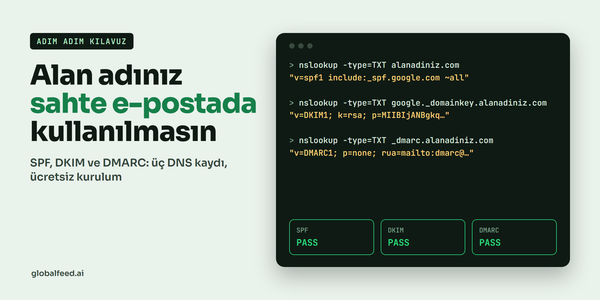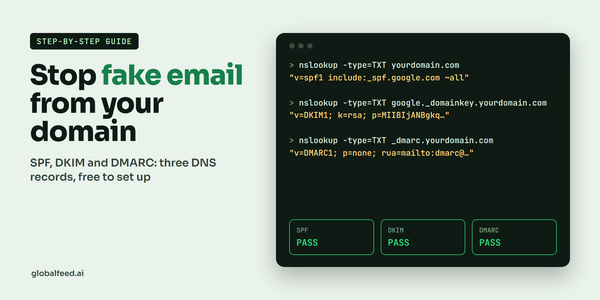
How to stop your domain being used for fake email: a guide to SPF, DKIM and DMARC
Keep your domain from being used to send fake email in your name. What SPF, DKIM and DMARC do, how to set them up, how to test them and the most common mistakes.

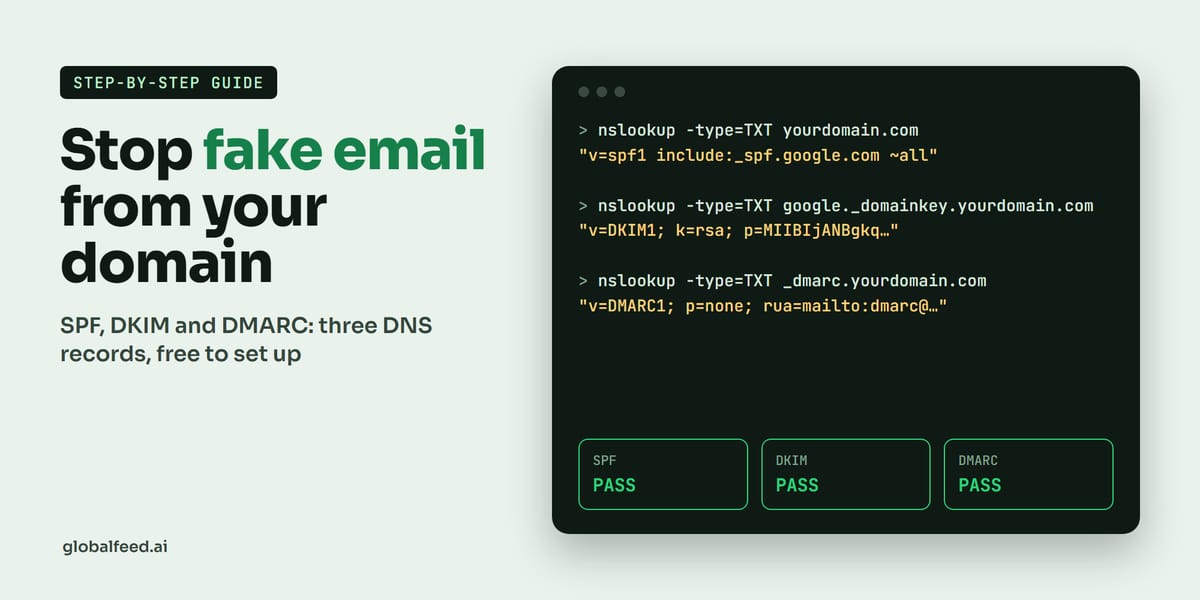
If someone used your domain to write an email in your name, could your customer tell it was not from you? With three small DNS records set up correctly, yes: SPF, DKIM and DMARC. With them in place, Gmail, Outlook and Yahoo check whether an email really comes from you, which shuts the door on fake invoices and “our bank details have changed” messages sent from your domain to fool people. The same settings help your real quotes, invoices and newsletters reach the inbox safely. The good news: all three are free and each is a few lines of text. This guide explains what they are, why every company now needs them and how to set them up step by step.
Three records, three jobs
Picture an office building. SPF is the guest list at the door: it names the servers allowed to send email for your domain (for example Google Workspace or Microsoft 365). If a server not on the list claims to be you, the receiver can tell. The rules are in RFC 7208.
DKIM is the seal on the envelope: every email you send gets a cryptographic signature, and the receiver checks it against the public key you publish in DNS. An intact seal means the message was not altered and really left your server. It is defined in RFC 6376.
DMARC is the instruction to the doorman: it says what to do with mail that fails SPF and DKIM (watch, send to spam or reject). It also sends you regular reports, so you can see who sent email in your domain’s name and from which server. In May 2026 DMARC moved onto the Internet standards track as RFC 9989.
Why everyone needs them now
The big mailbox providers have made the rules clear over the past two years. Per Google’s sender guidelines, since February 2024 everyone sending to Gmail needs at least SPF or DKIM. Senders of roughly 5,000 or more messages a day need all three of SPF, DKIM and DMARC, domain alignment and one-click unsubscribe, and must keep their spam rate under 0.3%. Google’s FAQ says enforcement on non-compliant traffic ramped up from November 2025.
Yahoo applies similar rules. Microsoft, as announced on its Outlook blog, has since 5 May 2025 expected SPF, DKIM and at least a p=none DMARC record from domains sending more than 5,000 messages a day to Outlook.com, Hotmail and Live addresses. In short, these three records are now the baseline for reaching the inbox.
Step 1: Check where you stand
On Windows, open Command Prompt and run these two commands with your own domain:
nslookup -type=TXT yourdomain.com
nslookup -type=TXT _dmarc.yourdomain.com
You should see a line starting with “v=spf1” in the first and one starting with “v=DMARC1” in the second. On Mac or Linux, dig TXT yourdomain.com +short does the same. If you prefer not to use the command line, Google’s free Check MX tool checks your MX and SPF records.
Step 2: Add the SPF record
In your DNS panel, add a TXT record at the root of the domain (@). For Google Workspace, Google recommends:
v=spf1 include:_spf.google.com ~allFor Microsoft 365, Microsoft recommends:
v=spf1 include:spf.protection.outlook.com -allA few rules matter. A domain can have only one SPF record; add other senders such as your newsletter service, CRM or invoicing tool inside the same record with “include:”. The record may trigger at most 10 DNS lookups, beyond that it errors. Know the ending too: Google recommends the softer “~all”, Microsoft recommends the stricter “-all” for its customers. For domains that never send mail, one line is enough: v=spf1 -all.
Step 3: Turn on DKIM signing
Your email provider generates the DKIM key; you only publish it. In Google Workspace, go to Apps > Google Workspace > Gmail > Authenticate email in the admin console and generate a new record, choosing a 2048-bit key if your DNS host allows it. You get a TXT record named “google._domainkey”. After adding it, wait up to 48 hours and click “Start authentication”.
In Microsoft 365, per Microsoft’s guide, you add two CNAME records, “selector1._domainkey” and “selector2._domainkey”, then enable DKIM signing in the Microsoft Defender portal. Both selectors are needed; adding only one is a common mistake.
Step 4: Start DMARC gently, then tighten
Once SPF and DKIM have run for at least 48 hours, it is DMARC’s turn. Add a TXT record named “_dmarc” and start in monitoring mode:
v=DMARC1; p=none; rua=mailto:dmarc@yourdomain.com“p=none” blocks nothing; it only collects reports, which arrive at the “rua” address. Google and Microsoft both suggest a dedicated mailbox or group for them. Google’s rollout plan: watch reports for about a week, make sure all your legitimate senders pass, move to “p=quarantine” (send suspicious mail to spam) and finally reach full protection with “p=reject”. Microsoft recommends the same order and suggests starting with subdomains.
A current note: most guides still use the “pct” tag for gradual rollout, and most receivers still read it. The new standard, RFC 9989, replaces it with “t=y” (testing mode). For domains that never send mail, the cleanest record is v=DMARC1; p=reject;
Step 5: Test the result
Send an email from your domain to a different Gmail account (not to yourself). Open it in Gmail, choose “Show original” from the More menu, and look at the top: SPF, DKIM and DMARC should all say “PASS”. If all three pass, your domain now proves who it is.
Common mistakes
- Keeping two separate SPF records on one domain (both become invalid).
- Adding so many “include:” entries that you pass the 10-lookup limit.
- Starting DMARC at “reject” before SPF and DKIM are settled.
- Sending DMARC reports to an address nobody reads.
- Forgetting that your newsletter, CRM or invoicing system also sends mail as your domain.
- Adding only one of the two DKIM selectors in Microsoft 365.
One step further
Once the basics are in place, three extras are available: MTA-STS (RFC 8461) requires encrypted transport for mail sent to your domain, and TLS-RPT (RFC 8460) reports problems with it. BIMI lets brands with DMARC at full enforcement show their logo in the inbox of supporting email apps, turning security work into a brand mark customers can see.
You do not need to be an expert: anyone with access to the domain panel can set up the core three in an afternoon. The result is email that reaches the inbox and a domain that only you can speak for.
Sources: Google sender guidelines, Google FAQ, Microsoft Outlook requirements, Yahoo sender requirements, RFC 9989 (DMARC), RFC 7208 (SPF), RFC 6376 (DKIM), Google Workspace SPF, Google Workspace DKIM, Google DMARC rollout, Microsoft SPF, Microsoft DKIM, Microsoft DMARC