Genie 4 in the Gemini API: how do you build a world your users can walk through?
Google opened Genie 4 to developers through the Gemini API and Google AI Studio. The four-step session, WebRTC vs WebSocket, key and text controls, per-second cost and the model's limits.

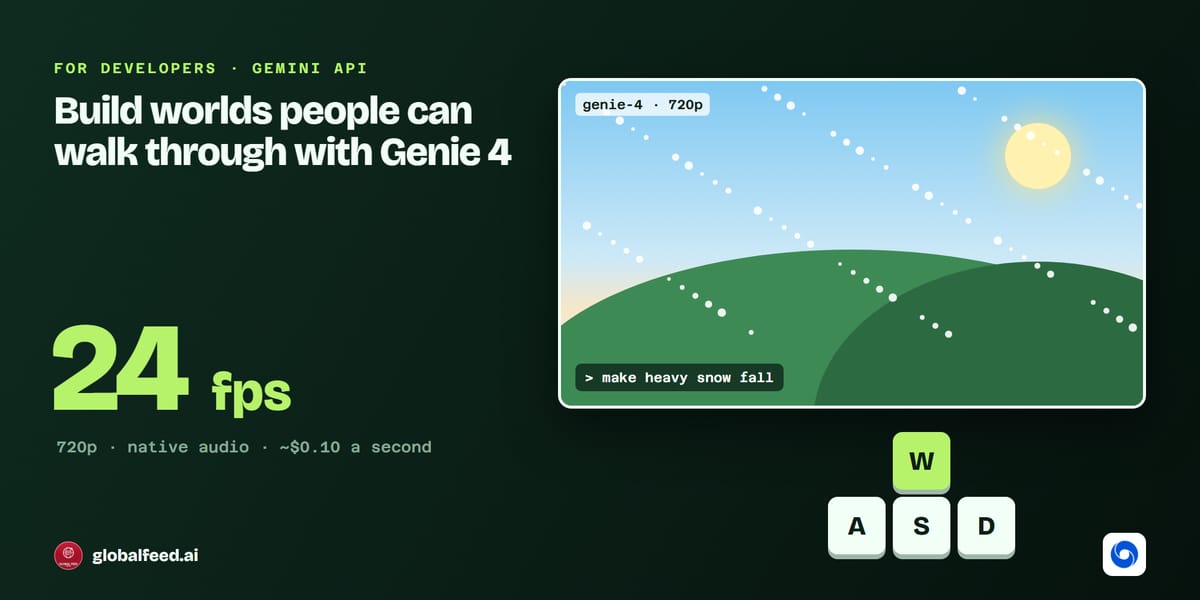
Genie 4, Google's model for worlds you can walk through, reached developers the day after it opened to subscribers. According to Google's November 19 announcement, the model is now available through the Gemini API's Interactions API and in Google AI Studio. From a text prompt, a starting image or both, it builds a continuous world streamed at 24 frames per second in 720p, with sound it generates itself. While the user moves around with the keyboard, typed sentences change the weather, lighting, objects and events on the fly.
That turns Genie 4 from something to watch into something to build with: you can now embed it in your own app, game prototype or robot training setup. Using the Gemini API documentation, here is how a Genie 4 session is set up, how cost is calculated and how to design around the model's limits.
The idea: the difference between watching video and walking in a world
Classic video models turn a prompt into a ready-made clip of a few seconds, and the job ends there. Genie 4 renders frames on the fly in response to the user. Press W and the camera moves forward, use the arrow keys to look around, type "make heavy snow fall" and snow starts a second or two later. Google says Gemini reasoning keeps the world state consistent. Every output carries an invisible SynthID watermark.
A session in four steps
The documentation describes every Genie 4 session as a four-step lifecycle.
1. Create the interaction on your server. Your backend calls interactions.create for the genie-4 model. For browser clients it then mints a short-lived token scoped to that one session, so the real Gemini API key never reaches the browser.
2. Open the live connection. interactions.connect offers two transports. WebRTC is recommended for browser apps and games: video and audio flow straight into a video element with the lowest latency. WebSocket suits Python scripts, Node.js backends and frame capture; there each frame arrives as base64 JPEG and audio as 48 kHz stereo PCM.
3. Seed and steer the world. Send one world_setup event at the start with a text prompt, a 16:9 starting image or both. The first frame takes roughly 5 to 9 seconds. Then there are two kinds of control. user_action events handle movement: W, A, S, D to walk, arrow keys to look, with a 0.2 to 0.5 second response. Plain text inputs handle events and dialogue, such as "press the brew button so espresso pours into the mug". Text changes appear in 1 to 2 seconds.
4. Always close the session. This is the point the docs stress most: closing a browser tab or dropping the connection does not stop generation on the server. Call session.complete() or cancel() to stop billing.
Practical tips from the docs
Genie 4 has no built-in "jump" or "interact" key. You catch your own game keys like E or Q in the client and turn them into descriptive text; in the docs' example, E sends "make heavy snow fall across the painted village" and Q sends "burst bright golden fireworks above the village rooftops". Because the model samples text every four frames, the docs suggest sending a one-off command 10 times at 150 ms intervals and waiting about 2 seconds before a conflicting one. To talk to a character, put the line in quotation marks. Describing a change inside the current view keeps the world steadier than camera cuts like "cut to aerial view".
With WebRTC, resize the starting image to 1280x720 or 640x360 and send it as a JPEG under 48 KB; the channel's message limit is 64 KB and base64 adds about a third. Larger images can go over WebSocket.
How the cost works
Genie 4 needs a paid-tier Gemini API key. Per the docs, as of November 20 each frame is billed as 240 video output tokens; at 24 frames that is 5,760 tokens per second, or about $0.10 per second including audio, roughly $6 a minute. Since a session can run at most 120 seconds, one session tops out at about $12. Billing runs by the second, so you pay for the time users actually spend in the world, which is why the close call matters.
Designing around the limits
Genie 4 does not keep a persistent 3D scene; it generates frames over a rolling time window. Looking away from an object for more than 8 seconds or turning 360 degrees can make doors, buttons or buildings shift, and visual stability may fade after 60 to 90 seconds. Signs, clocks and exact object counts can drift. Output is landscape 16:9 at 24 fps only; portrait video is not supported. There is no microphone or camera input, function calling or Google Search grounding. Serving runs from the United States, Western Europe and Japan, with the best responsiveness in North America, Western and Central Europe and East Asia; elsewhere, key response can lag. Prompts with real people, public figures or copyrighted brands may be blocked.
Those limits also show where Genie 4 shines: short, focused experiences. Google lists prototyping interactive experiences, visualizing spatial designs and training robots and AI agents as uses. The quickest way in is the interactive canvas in Google AI Studio and its starter apps, where you can test prompts and controls before writing code.
In an independent assessment, the strongest part of the Genie 4 API is that a world model now plugs into an ordinary web app through a small event protocol; the two-minute session cap and per-second pricing make it a better fit for short, intense prototypes than long games for now.
Sources: Google blog: Genie 4 in the Gemini API, Gemini API Genie 4 docs, Google AI Studio