
Ask Claude about a suspicious link and let VirusTotal answer: how to set up the free connector
VirusTotal's official MCP server for AI agents is in Claude's connector directory. No API key, 1,000 free queries a day. Setup steps and first questions.

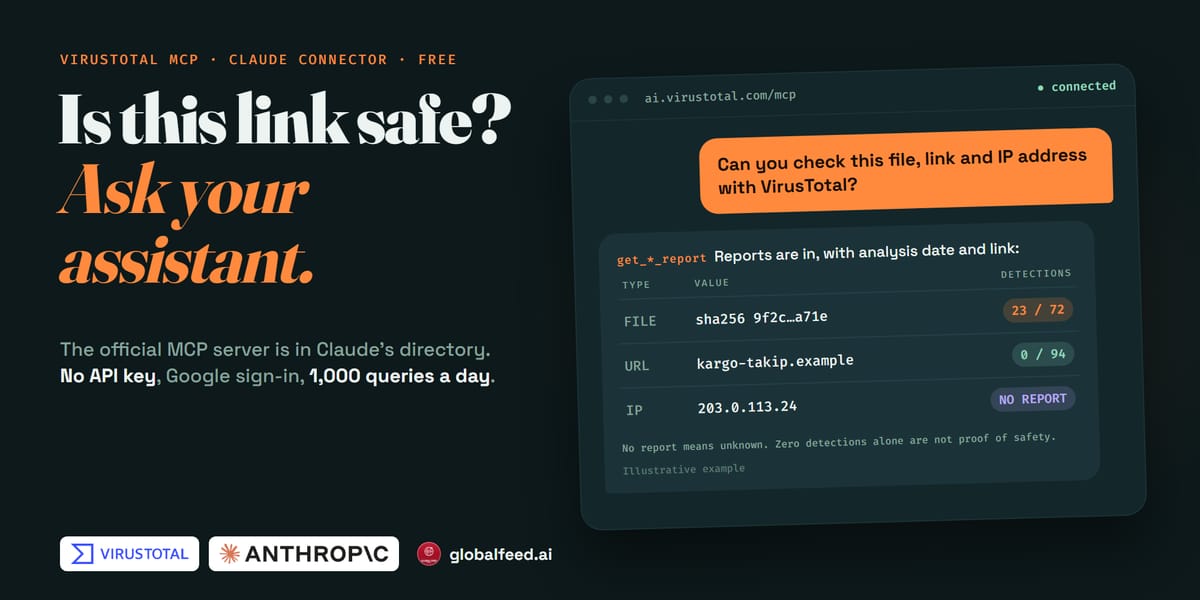
Before you click a link in an email, open a downloaded file or chase an odd IP address in your logs, the first question is always the same: is this safe? VirusTotal has long been where security teams ask it. Now you can ask your AI assistant instead. VirusTotal's official MCP server and its VTAI service are listed in Claude's connector directory, with setup recipes for Claude Code, ChatGPT, Codex, Cursor, VS Code and Gemini CLI.
The setup is the surprise. You do not need your own VirusTotal API key: sign in with Google in the browser, approve the permissions and you are connected. The free tier allows 60 queries a minute and 1,000 a day. Here is what MCP is, how to add the connector and what to ask on day one.
What MCP does here
MCP (Model Context Protocol) is an open protocol that lets an AI assistant reach outside tools in a common language. When a service runs an MCP server, any compatible assistant can see its tools and call them when needed. VirusTotal's server lives at https://ai.virustotal.com/mcp. Through it the assistant reads file, URL, domain and IP reports and, only when you explicitly ask, submits files or links for analysis. The answer is VirusTotal's own report, with analysis date, coverage and a report link.
The tools
get_file_report,get_url_report,get_domain_report,get_ip_report: read existing reports by hash, URL, domain or IP.submit_fileandsubmit_attachment: submit a file of up to 24 million bytes;submit_urlscans a link;reanalyze_domainandreanalyze_iprequest a fresh look.get_submissionandget_analysis: recover receipts and read results. A local install addssubmit_local_file; the remote server cannot see your disk.
How to add it to Claude
- Open VirusTotal in the Claude directory and add the connector.
- Connect your account: continue with Google and approve the permissions on VirusTotal AI.
- Enable VirusTotal in a conversation and ask your first question.
You can also add it as a custom connector with the URL https://ai.virustotal.com/mcp; organization owners may need to enable it first. In Claude Code, two commands install the official plugin: claude plugin marketplace add VirusTotal/virustotal-mcp and claude plugin install virustotal@virustotal (Claude Code 2.1.283 or later). It bundles the OAuth connection and a threat-intelligence skill, with no hooks or scripts; run /mcp to finish the browser sign-in.
What to ask on day one
VirusTotal's suggested first query: "Use VirusTotal to get the domain report for virustotal.com. Show the source, analysis date, coverage and report link." From there, paste a suspicious link from an email, give the SHA-256 of a downloaded installer, check an IP that keeps showing up in your server logs, or look up a new supplier's domain. Two habits help: a missing report means unknown, and zero detections alone do not prove safety. Submissions are shared with the security community and partners, so for your own documents or internal code, look up the hash instead.
The repository opened on 8 September, is Apache 2.0 licensed and was last updated on 15 November. It also states plainly what has been tested in which client; the full hosted Claude chat workflow, for example, is still listed as pending validation. All you need to try the free tier is a Google account.
Sources: GitHub: VirusTotal/virustotal-mcp, VirusTotal AI (VTAI), Claude directory: VirusTotal, Hosted clients guide