
Guide: moving your Claude Code chat between PowerShell, Desktop and the web
From resuming yesterday's session to moving it into the Desktop app, pulling a web session into the terminal, and backing it all up: four moves, step by step with screens.

When you work with Claude Code, a conversation is not locked to one place: a chat you start in PowerShell can move to the desktop app, and a cloud session from the web can be pulled into your terminal. This guide walks through the four moves step by step, assuming nothing. One ground rule: these features work with a Claude subscription; the transfer commands are unavailable on API-key-only auth.
1) Pick up where you left off
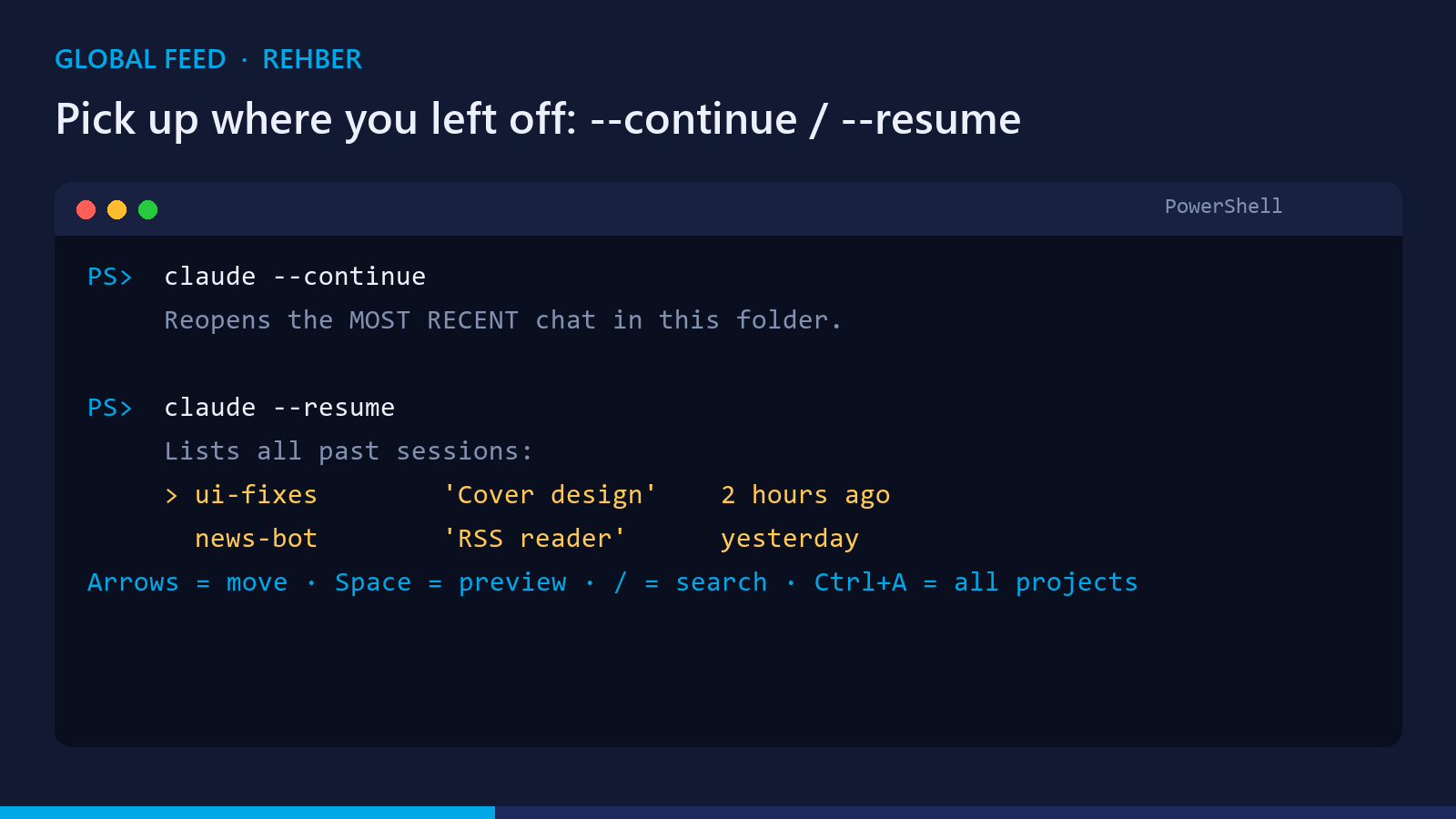
Back in the project folder, you have two options. claude --continue reopens the most recent chat as-is. claude --resume lists every past session: arrow keys to move, Space for a preview, / to search, and Ctrl+A extends the list to every project on the machine.
2) Move a chat from PowerShell to the Desktop app
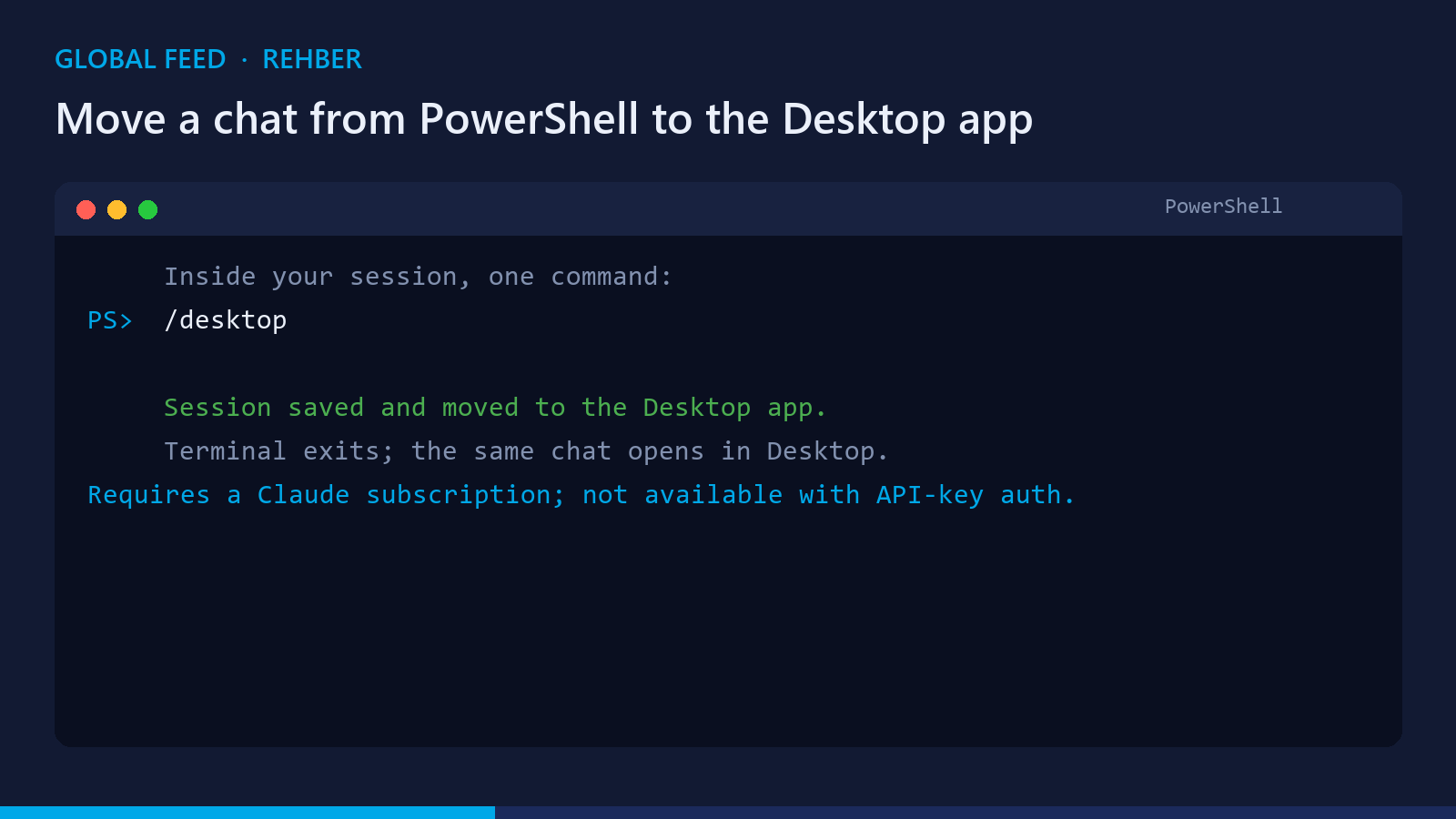
An important fact first: the terminal and the Desktop app keep SEPARATE chat histories; neither sees the other automatically. The official bridge is a single command: type /desktop inside your session. The session is saved, handed to the Desktop app, and the terminal exits; the same conversation opens in the app right where you left it.
3) Pull a web session into the terminal (teleport)
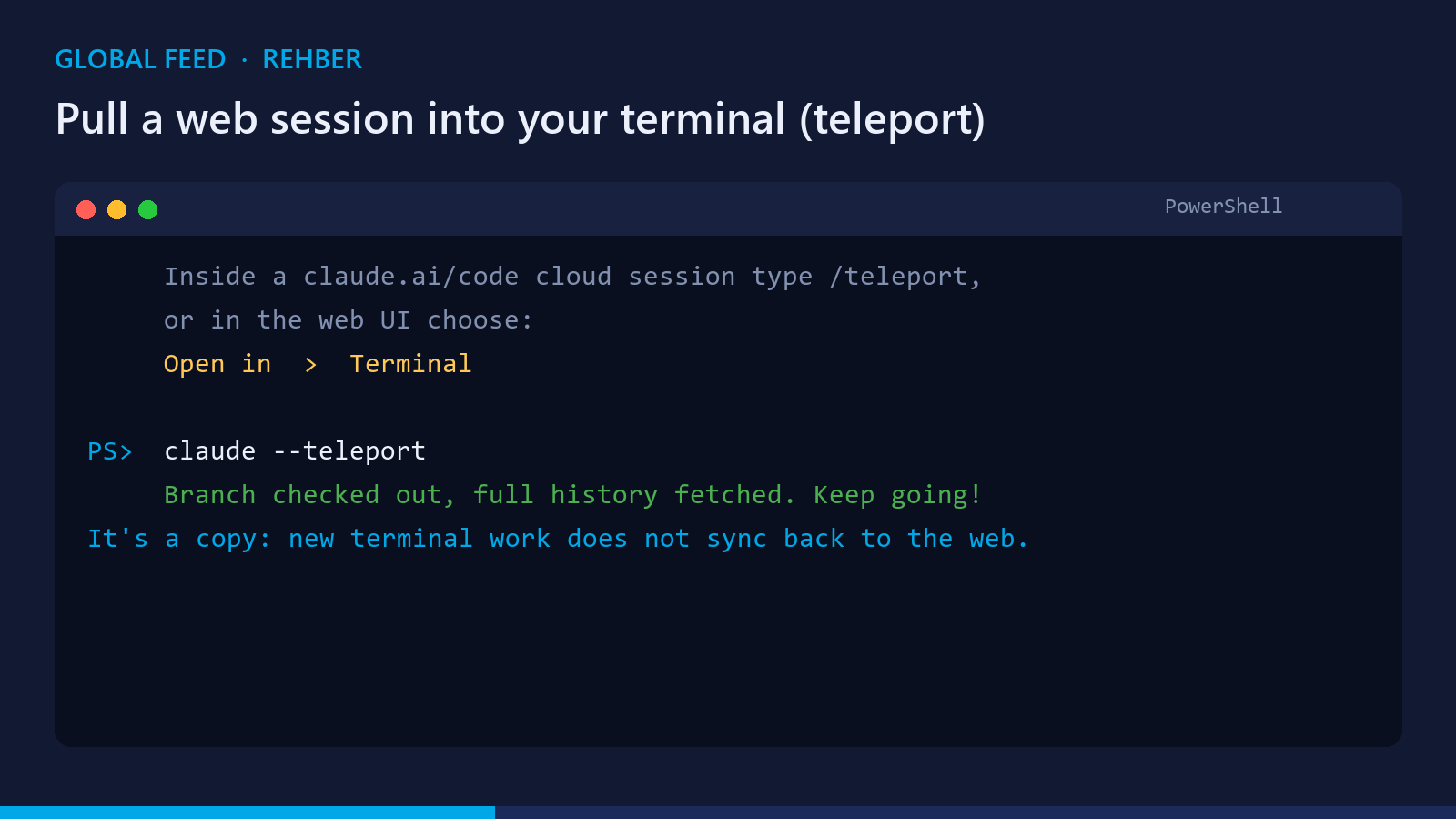
Cloud sessions on claude.ai/code live in their own world, but there is a bridge to the terminal. Inside a cloud chat, type /teleport and it prints the exact command for you to paste; the web UI offers the same via Open in > Terminal. Running claude --teleport checks out the branch, fetches the full conversation history, and you carry on. Note: it is a copy; new terminal work does not sync back to the web session.
4) Back it up: /export
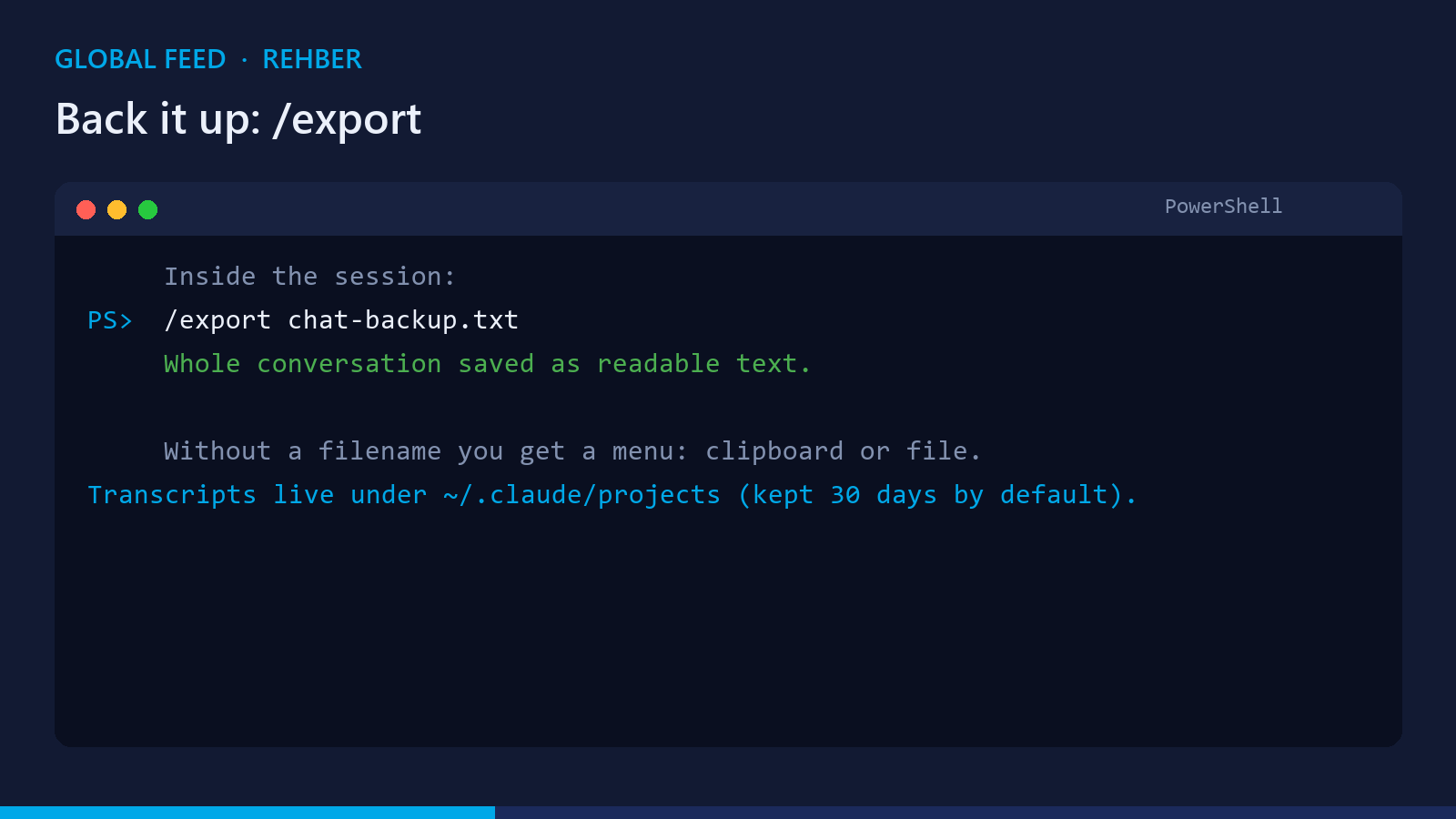
To keep a conversation as a file, type /export backup.txt inside the chat; the whole thing is saved as readable text. Skip the filename and you get a menu: clipboard or file. Transcripts live under ~/.claude/projects and are kept for 30 days by default, so /export is the safe way to preserve the important ones.
The reverse direction exists too: to send a Desktop session to the cloud, use the Continue in menu on the session toolbar and pick Claude Code on the Web (it wants a clean git state and opens a new cloud session). That is all of it: four commands and one menu, and your conversations now travel with you.