Canva's new AI switch: which tools turn off, and which stay on?
Canva brought AI Controls to Free and Pro users. The generative AI switch, the editing tools that stay, the library setting and team accounts, step by step.

Canva's AI tools have been used more than 38 billion times. Now the company has added two settings that put how much you use them entirely in your hands. According to Canva's November 19 announcement, the new AI Controls are available to Canva Free and Canva Pro users at no extra cost. One switches the account's generative AI features on or off in a single place; the other shows less AI-generated content when you browse the library.
Canva sums up the move in one line: the goal is to put creative choice back with the user. Whether you want to design with AI, without it or somewhere in between, the settings now sit in one place. Here is exactly what each control changes, which tools stay on and where to find the settings step by step.
Control one: the generative AI switch
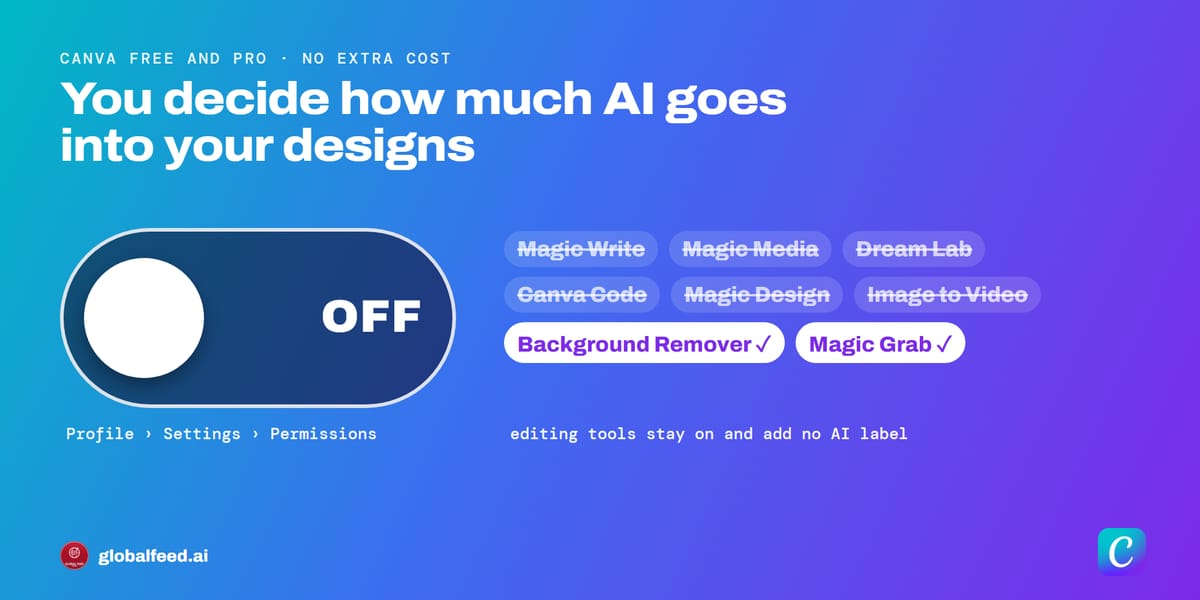
Canva's help page says the switch is on by default, so nothing changes unless you touch it. Turn it off and generative AI features are hidden from the interface; you can turn them back on at any time. The list of features that go away is long: Canva AI, Magic Write, Magic Design, Magic Activities, Magic Edit, Magic Media, Magic Insights, Magic Layers, Dream Lab, Canva Code, the Help Assistant's AI-generated design advice, Transform into Doc, AI Shapes, AI Charts, Canva AI Music and Sound Effects, Decorate, Auto-match in Bulk Create, Image to Video, Translate designs and creating ads in Grow. Canva says new generative features will follow the setting as they are added.
How to turn it off:
- 1. Click your profile icon.
- 2. Select Settings.
- 3. Under Controls and permissions, open Permissions.
- 4. Turn off "Enable generative AI features".
What stays on: assistive editing tools
Switching off does not remove every smart tool. Canva's announcement says assistive editing tools such as Background Remover and Magic Grab remain available with generative AI off. The reasoning is straightforward: these tools edit existing content rather than create new content, so using them adds no AI content label or AI metadata to a design, and social platforms will not flag your work as AI-made because of them. The help page adds a detail: some of these tools may still count against your plan's AI allowance.
Control two: less AI content in the library
Canva says only a small portion of its library is AI-generated, mostly abstract backgrounds and illustrated graphics, and those assets carry AI metadata. The new setting pushes them back in search and recommendations. Canva frames it as bringing human-made work to the front and reminds readers that creators are paid each time their work is used in a design.
How to use it: go to your profile icon, then Your account, then AI personalization, and turn off "AI-generated content". The help page spells out its limits: it affects only your own account, some AI items may still appear, and it does not change content already in your designs. Brand Templates, your own uploads, search inside Canva AI, third-party apps and Canva used through an API or MCP server are not affected. The setting is separate from the generative AI switch and from the privacy control for AI feature improvement.
Teams and schools
Canva Teams, Business, Enterprise and Education accounts do not see the single switch; admins decide AI access. According to the admin help page, owners and admins can turn 16 features on or off one by one under Settings, Controls and permissions, Permissions, Magic and AI, including Magic Write, Magic Design, Dream Lab, Canva Code and Image to Video. On Teams and Business they are on for all members by default. On Education only admins and teachers have access, while students get Magic Media, Dream Lab and Magic Insights. Admin changes apply to new designs. The library setting has not reached these plans yet.
When you will see it
The announcement says both controls are available to Free and Pro users "from today", while the help page notes the toggles are rolling out gradually and may not appear yet. If you cannot find them, check back in a few days. If you move from Free or Pro to a team plan, the setting does not carry over and the admin takes the decision. Canva closes its announcement with its own line: your creativity, your call.
Sources: Canva announcement: AI Controls, Canva Help: turn generative AI off, Canva Help: admin controls